Note: The embed tile supports a single URL only. If you have embed code that uses a <iframe> tag, it cannot be used with the Embed tile. In that case, add the code in a Rich Text tile by following the steps as provided from the following link.
Adding Source code in Mosaic
Overview
The Mosaic Media Embed tile lets editors insert media from a URL into a Mosaic layout. It supports video, audio, and other HTML5 media types, and renders responsively within the content area. The tile is designed to be accessible, with descriptive alt text and optional captions.
What is the Mosaic Media Embed tile
The Mosaic Media Embed tile is a reusable component you place on a page to display media from a source URL. It handles aspect ratio, sizing, and playback controls, so editors can focus on storytelling rather than technical details.
Key features
- Responsive sizing that adapts to container width
- Support for common media types via a single tile
- Alt text and optional caption for accessibility and context
- Playback options such as autoplay, controls, and loop
- Configurable dimensions (width and height) or fully responsive mode
How to use the tile
- In the content editor, insert a new Mosaic Media Embed tile at your desired location.
- Enter the media source URL. This can be a direct link to a video or audio file or a supported streaming URL.
- Provide descriptive alt text to describe the media for screen readers.
- Add an optional caption that will appear beneath the media.
- Configure display options:
- Width and height (or enable responsive sizing)
- Autoplay, controls, and loop settings
- Muted state if autoplay is enabled
- Save and preview to verify layout and playback across devices.
- Consult accessibility and licensing notes to ensure proper usage in your publication.
Accessibility and best practices
- Always provide meaningful alt text that describes the media content or purpose.
- Include a caption when it adds context or helps interpretation.
- Prefer responsive sizing to ensure a consistent experience on different devices.
- Respect licensing and embed permissions for external media sources.
To add a Embed tile for YouTube as an example follow the steps below.
1.) Select the Insert tab, and under Media choose Embed by clicking it. You do not need to hold the mouse button down. 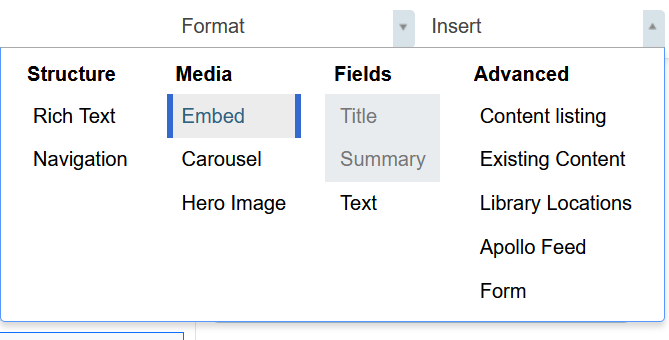
Enter the media URL in the provided field and select Save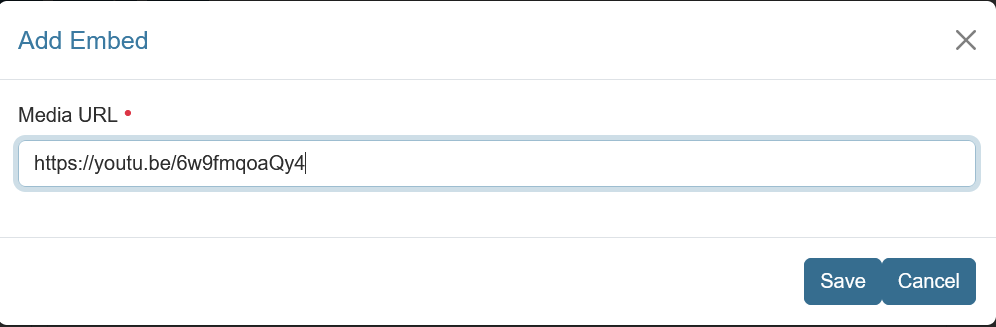
2.) Using the mouse, drag the tile to the desired location. Once you have positioned the tile, release the left mouse button to drop it.
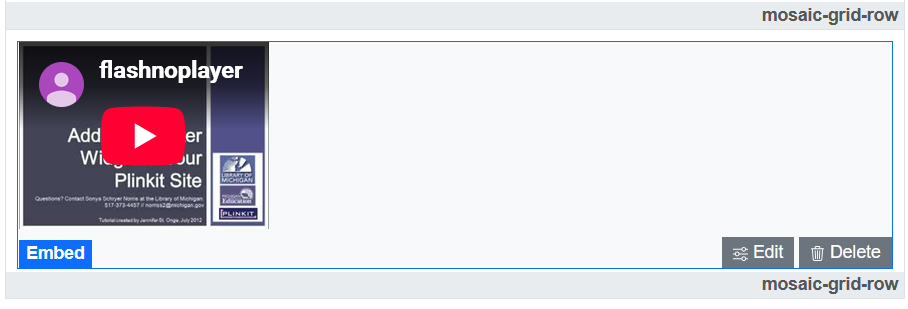
On the lower right you have the option to Delete the tile or Edit the URL
Was this article helpful?
That’s Great!
Thank you for your feedback
Sorry! We couldn't be helpful
Thank you for your feedback
Feedback sent
We appreciate your effort and will try to fix the article