The main navigation keyboard WCAG compliance update has changed how the main navigation works. This was needed to have the navigation buttons able to Tab through the main navigation using the keyboard for visually impaired indiviuals.
The changes
- The home button is no longer is available
- A Default page will show in the drop-down along with folders
- Accessing the root folder for a navigation button has changed
Terminology:
root folder -
- A root folder, also known as a root directory, is the top-most folder in a hierarchy of directories or folders on a computer’s file system. It is the primary folder that contains all other subfolders and files within a particular operating system or storage device.
Root folder -
( contents at root)
page
link- - - - sub-folder 1
- - - - - sub-folder 2
- Brbreadcrumbs are a secondary navigation scheme that shows the trail of the pages on a website and your location within them. The last entry shows the current folder you are in.

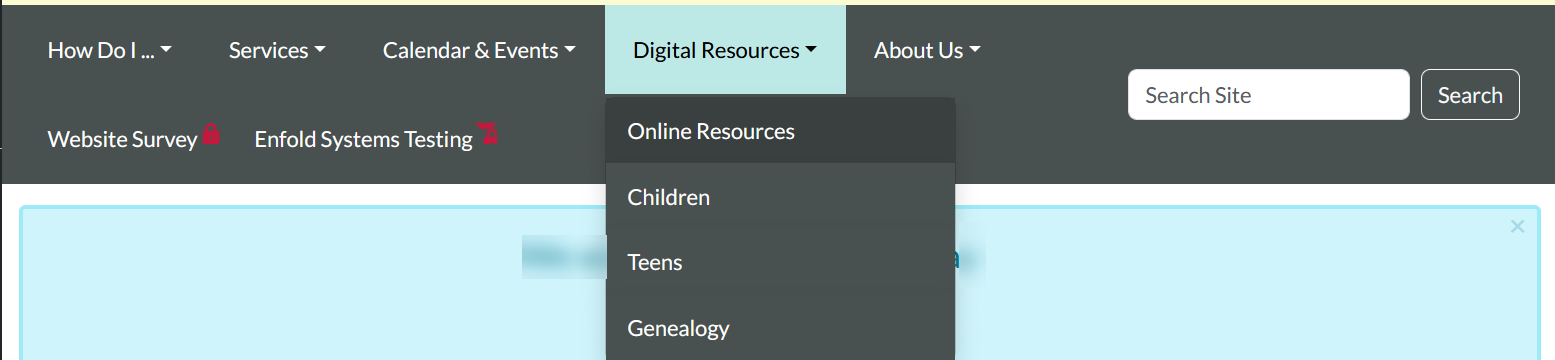
The home button a home button is no longer displayed as an example clinking on a navigation button opens up a drop-down displaying only folders unless you have assigned a Default page
(In this image when the "Digital Resources" button was clicked the drop-down opened and displayed all the folders contained in the folder "Digital Resources" )
(This is an image of the folder contents for the folder "Digital Resources" showing the folders)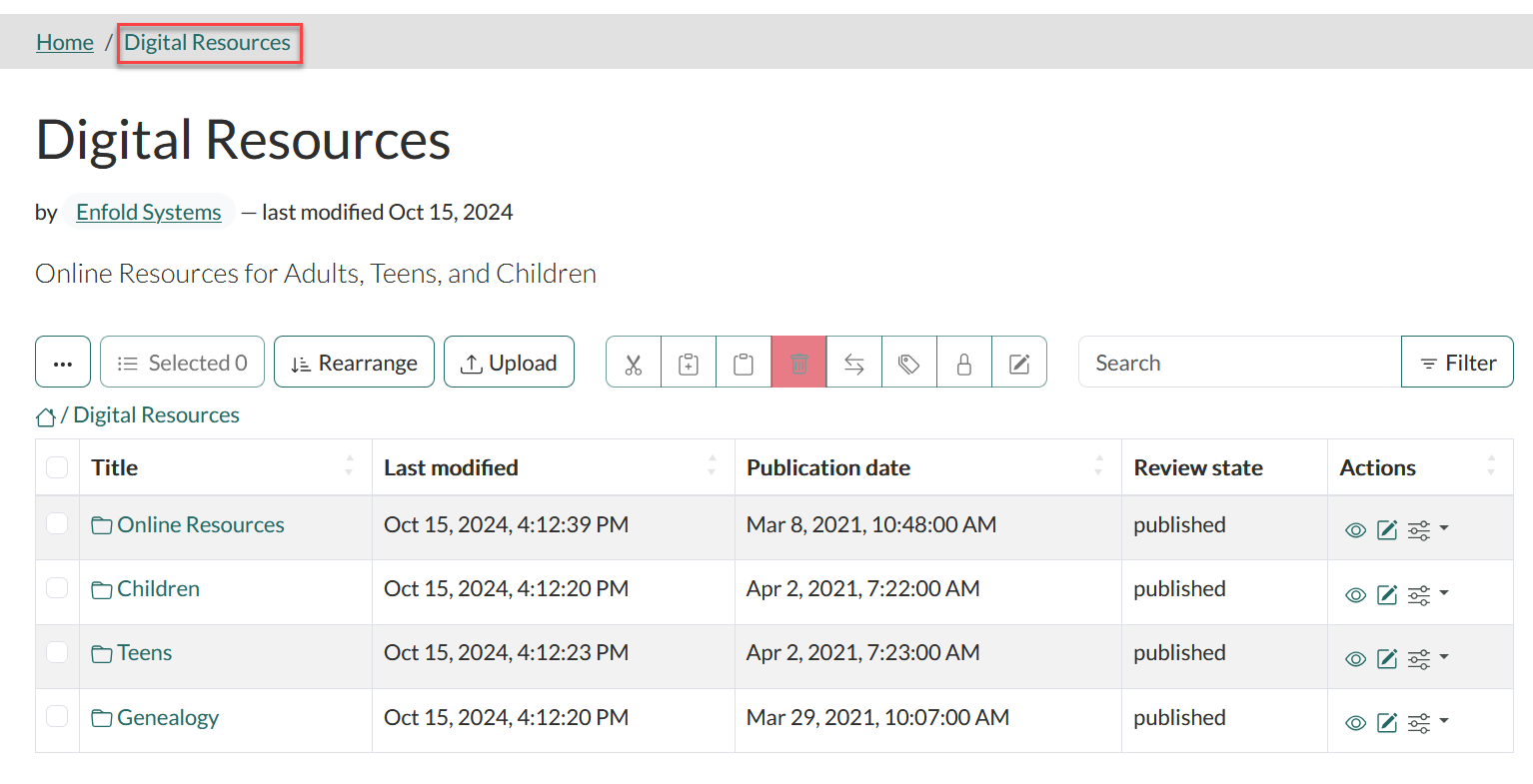
Default page when a default page is as added at the root of a folder it will display at the top of the navigation drop-down
(This is an image when a default page is added to the root of the folder and is displaying at the top of the drop-down)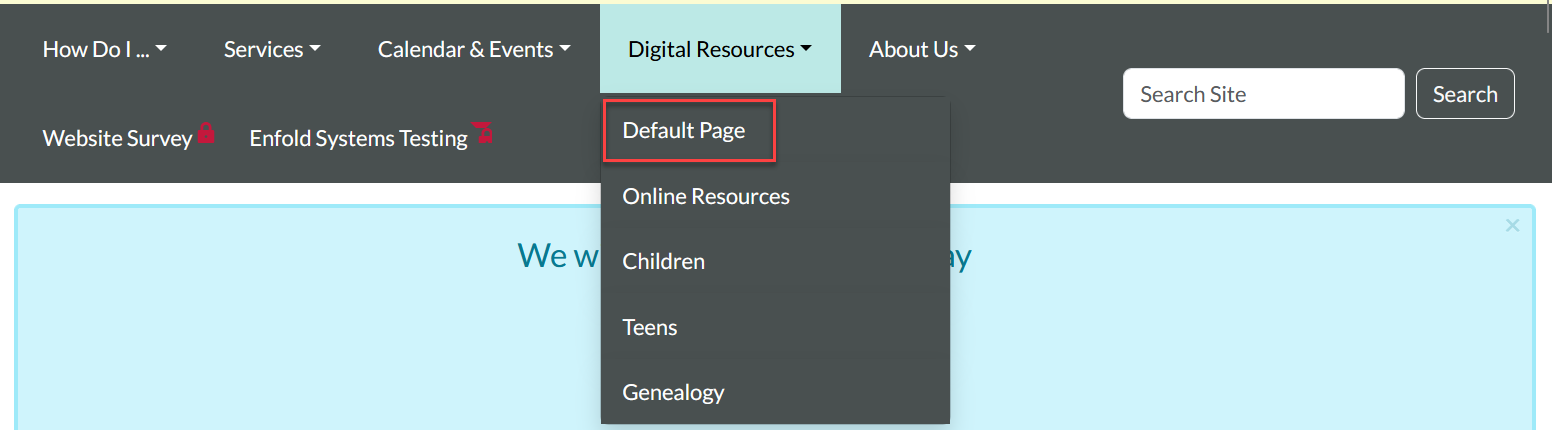
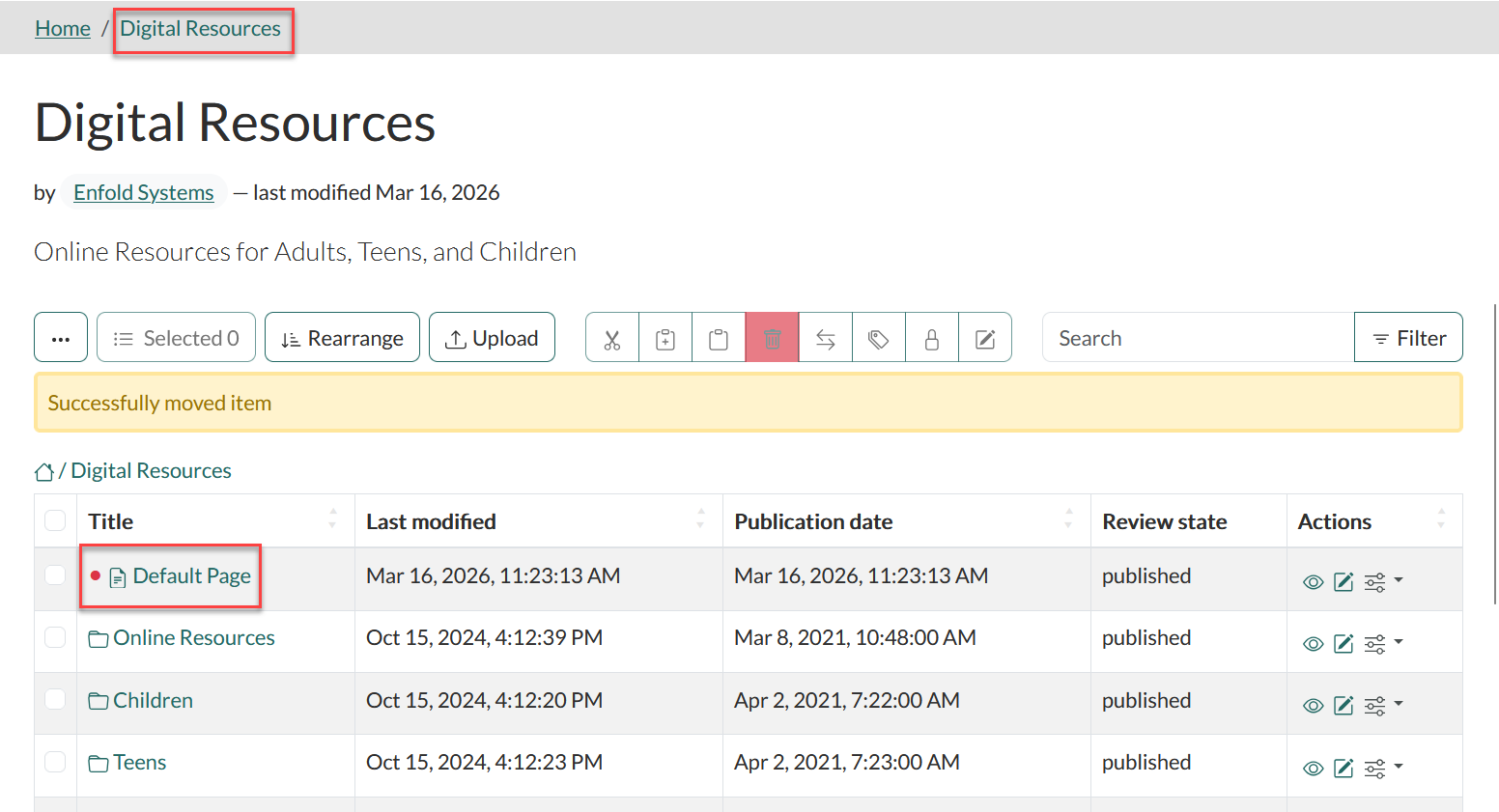
(A image of the folder contents showing a default page as indicated by the red dot in the title and the folders in the root of "Digital Resources)
Accessing the root folder To display the contents of the folder "Digital Resources" you need to get to the root of the folder by using one of two example.
1.) Using the folder contents from the root home page folder. The easiest way to get to the root folder is to select your Home page by either clicking on the site logo in the header or use the Home breadcrumb link
(Image showing the home page breadcrumb)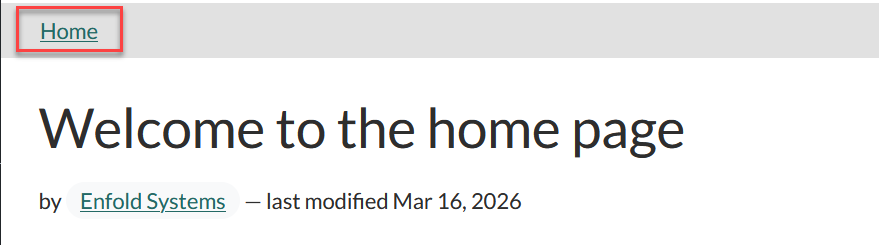
Now that we have selected the home page we can access the all the folders in the root folder by selecting Contents from the editors tools menu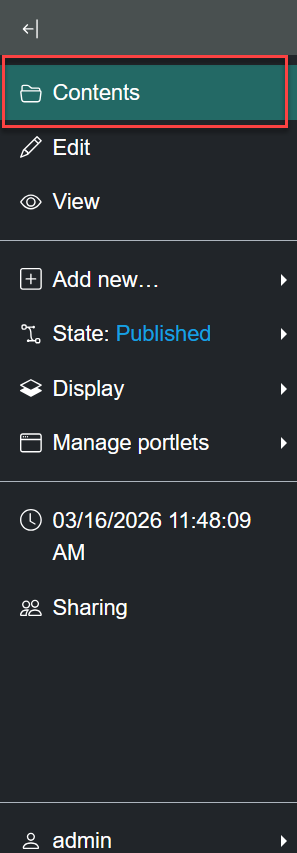
This will open up the contents in that folder and find the folder you want to open the root of and click it.
(Image of the contents of the root folder)

(Image of the contents after clicking the folder from the image above)
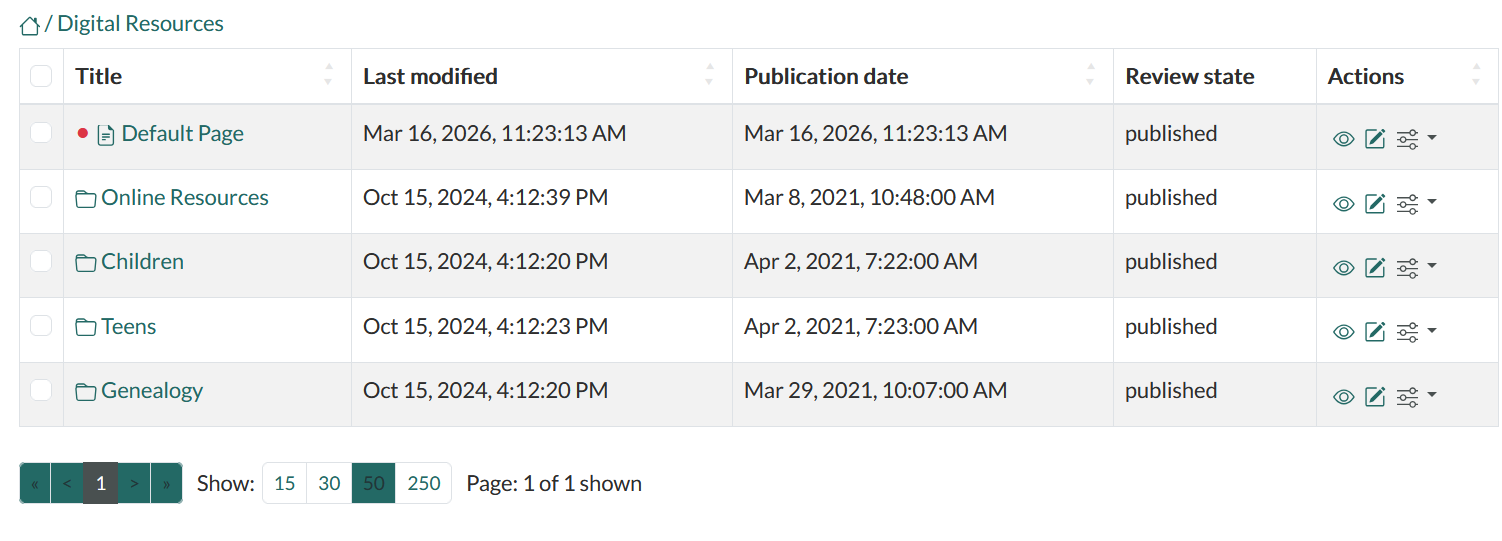
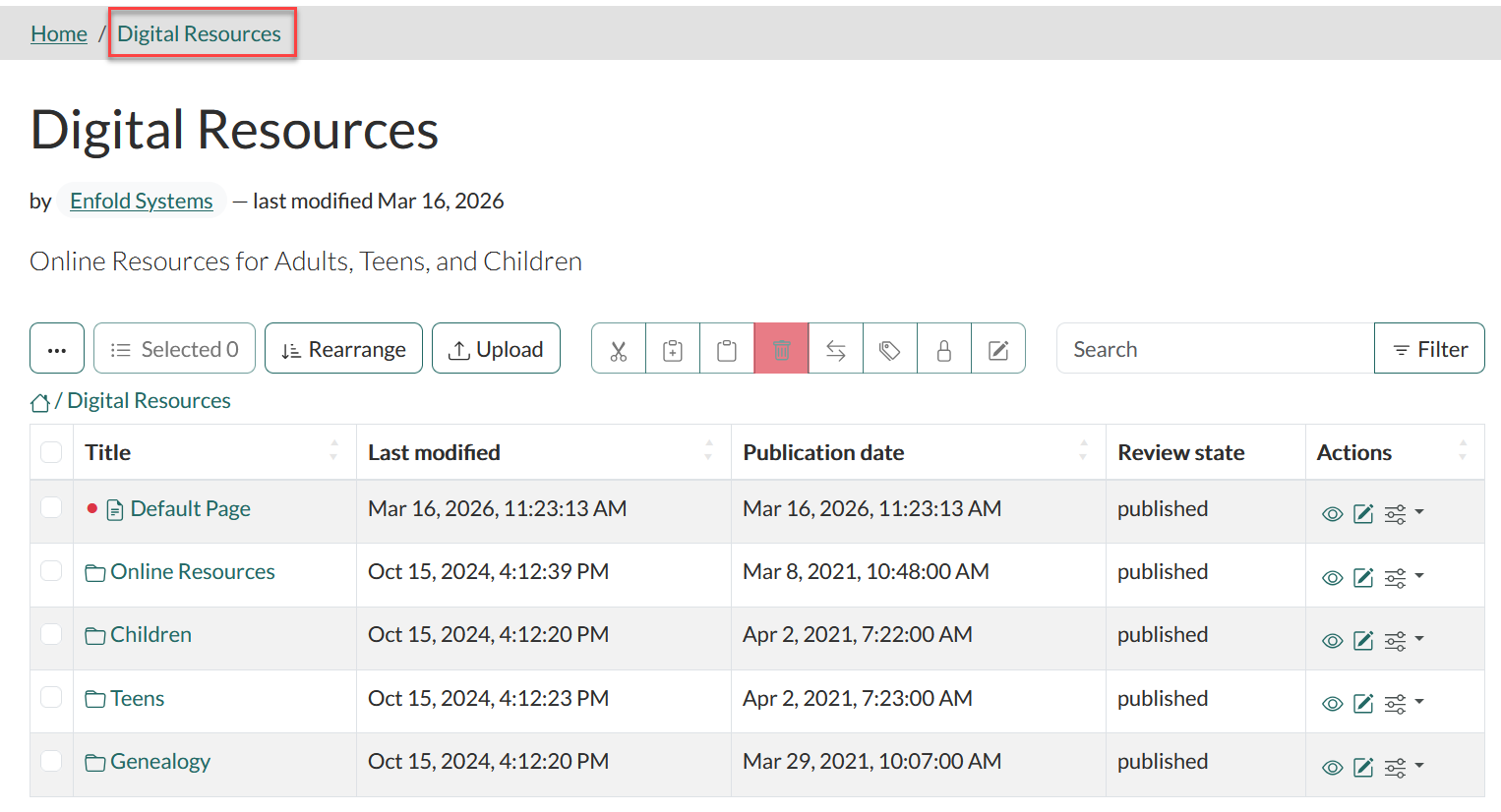
Using the breadcrumb links. Because selecting the button on the navigation no longer opens in the root of the folder when contents is selected you can use the breadcrumb to get to the root of in this case the "Digital Resources" folder. To add the breadcrumb I selected one of the items from the drop-dpwn and which point you can select it from the breadcrumb then select contents from the editors tool menu
(Breadcrumb example image for the root folder "Digital Resources")

(Image of folder contents after clicking on breadcrumb then selecting contents)
Was this article helpful?
That’s Great!
Thank you for your feedback
Sorry! We couldn't be helpful
Thank you for your feedback
Feedback sent
We appreciate your effort and will try to fix the article